IOS Remote Testing
Candidate Portal
Welcome to the IOS Remote Testing Candidate Portal
Please use this page to prepare and register for your IOS Remote Testing exam. Contact IOSTest Details:
Department:
Lexington, KY Fire Department
Dates:
February 13, 2026 at 1:00 pm CENTRAL TIME/2:00 pm EASTERN TIME
February 17, 2026 at 8:30 am CENTRAL TIME/9:30 am EASTERN TIME
Test:
NFSI
Test Description:
National Firefighter Selection Inventory (NFSI). The NFSI contains 155 items and is split into two sections. Section I consists of 105 cognitive ability items. Section II contains 50 behavioral-orientation questions. You will have two and a half hours (2 ½ hours) to complete the NFSI.
Length of Session:
The session length is 3 hours and 30 minutes.
This includes 2 hours and 30 minutes for the exam as well as one hour for check-in, instructions, and candidate support.






Step 1: Install The Required Software
IMPORTANT
Candidates who arrive to their scheduled test session without the required software may forfeit their seat in the exam. Please be sure to install the required software using the links below, and email su*****@*********ns.com with any issues.
Why do I need two devices?
You will use your mobile device or tablet to join a video meeting with an IOS proctor at the time of your exam. Video surveillance through the video meeting with the proctor must be maintained at all times.
The Windows or Mac computer is used to take the exam itself via the testing software. Please keep in mind that Chromebooks, tablets, and mobile devices are not compatible with the testing software.
What do I need to test with IOS Remote Testing?
You will need 2 devices to test with IOS.
- A computer or laptop running either Windows 10 or later, or running MacOS 11 or later.
- A mobile device or tablet.
Testing Software
For your computer. Installations of the Safe Exam Browser from anywhere other than the page linked below may result in an inability to test.
Video Meeting Software
For your phone or tablet. The video software may not be installed on your test-taking device.
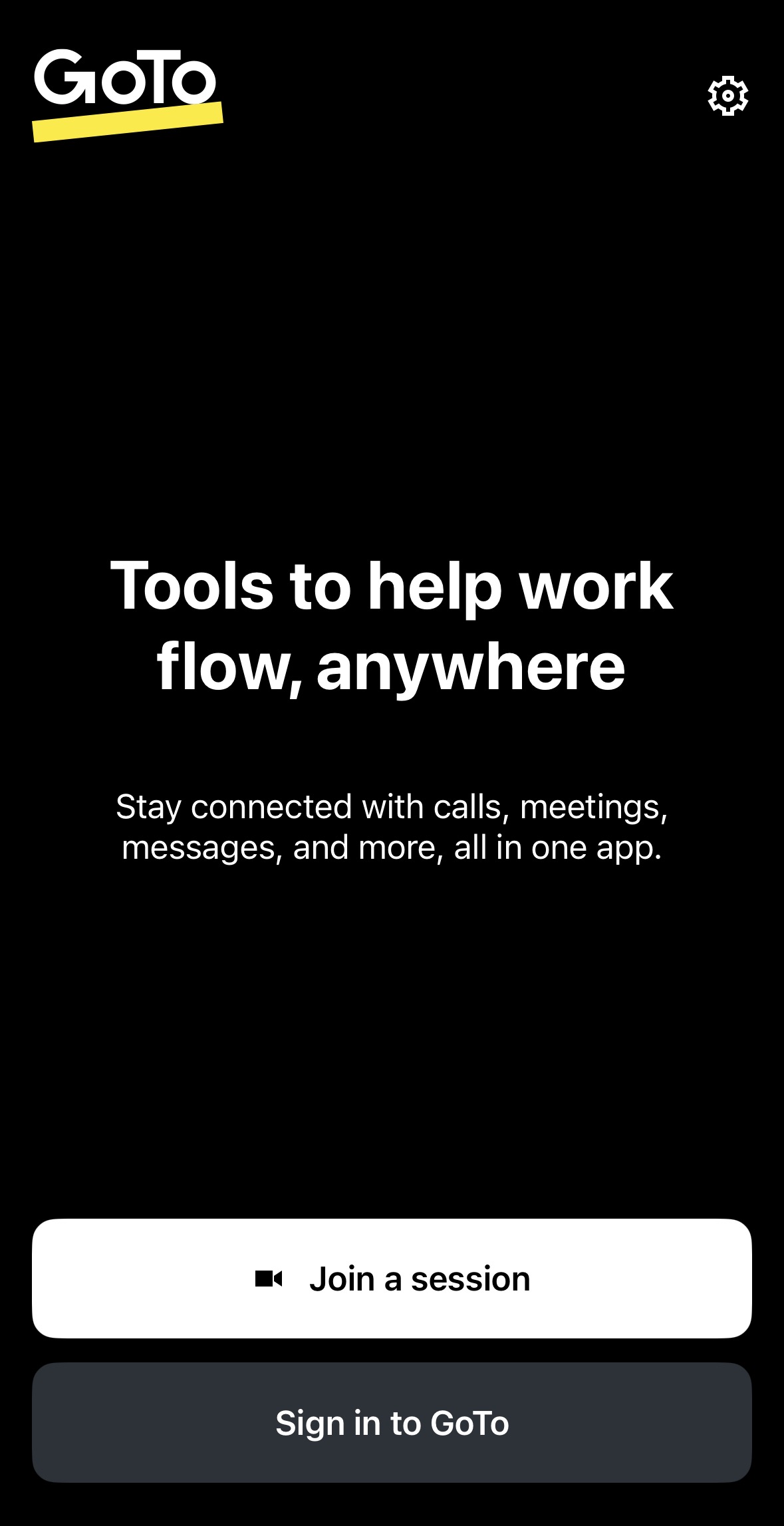
The video software is called “GoTo” – you can find it in your app store or use the link below for direct download links.
Software Installation Confirmation
Have you installed your applications correctly?
Step 2: Read the TSA/NDA Agreement
When you register, you will need to confirm that you agree to the IOS Test Security and Non-Disclosure Agreement. You can read that document here:
Violations of this agreement, including testing in a non-private location or having contact with others during the exam, will result in your dismissal from the test session, and certain actions could require legal action. Please review the TSA/NDA agreement prior to the exam.
Step 3: Choose an Exam Date & Time
Use the link below to schedule your exam.
Scheduling is not available within 72 hours of the exam time.
Please be sure to change the “time zone” dropdown at the top of the scheduling page to reflect the time zone that you will be in on the date of your exam.
Contact IOS Support
How does IOS Remote Testing work?
During this process, you will
- Install the required software.
- This includes The Safe Exam Browser, the SEB Configuration, and the GoTo app.
- Select a test date and time.
- IOS has worked with the host department to schedule agreed upon test times. The testing options provided in the scheduling link are the only options available.
- Join a video meeting with a proctor.
- Proctors will check your space for any unapproved materials, review testing rules, and give you the login information for your exam. Proctors can also troubleshoot technical issues if they arise.
- Take the test.
- Once the proctor provides the login credentials, you will enter the exam environment on your computer. When submit your exam, check in with your proctor to confirm that your exam is submitted.
- Wait for your results.
- Results will be provided by the department you are applying with. IOS cannot discuss test results with candidates.
FAQ
- What is my unique ID number?
- Your unique ID number is your SSN.
- I need to reschedule my exam, what should I do?
- Email us using the form above and let us know when your test is and when you want to move it to.
- I clicked on the scheduling link, but it says no times are available.
- This means that either all of the sessions are full, or it is too close to the exam time to register. Registration links deactivate 72 hours before each session. You can email us using the contact form above to find out if there is any room remaining.
- I tried to open the Safe Exam Browser, but it says it isn’t configured yet. What should I do?
- The Safe Exam Browser configuration can be downloaded in the instructions above.
- What is my username and password for the Safe Exam Browser?
- The proctor will give you the login credentials for the Safe Exam Browser during the test session.
- What happens if I have a technical issue during my test session?
- We recommend installing the exam browser ahead of time to avoid issues during the session, but our proctors and IOS support team can solve many issues in real time, so you should always let us know if there is a problem.
Test Readiness Checklist
- I have installed the Safe Exam Browser (testing application) on a Windows or Mac computer.
- I have installed the SEBClientSettings file (Safe Exam Browser Configuration) on the same computer.
- I have launched the Safe Exam Browser and accessed the IOS-Branded Login Screen,
- I have installed the GoTo (video meeting) app on a phone or tablet.
- I have scheduled a test time in the correct time zone, and have received a confirmation email for that appointment.
- I understand that I will receive an email 24 hours prior to my test, and will email IOS if I do not receive that email.
- I understand that the username and password for the Safe Exam Browser will be told to me by the IOS proctor during my test session.
- I agree to email su******@*********ns.com with any issues, technical concerns, or questions.